🚎 Tour Maker
 🌏 Interactive Product Tours 🚎
SeleniumBase Tours utilize 5 JavaScript libraries for creating interactive walkthroughs on any website:
IntroJS, Bootstrap Tour, DriverJS, Shepherd, and Hopscotch.
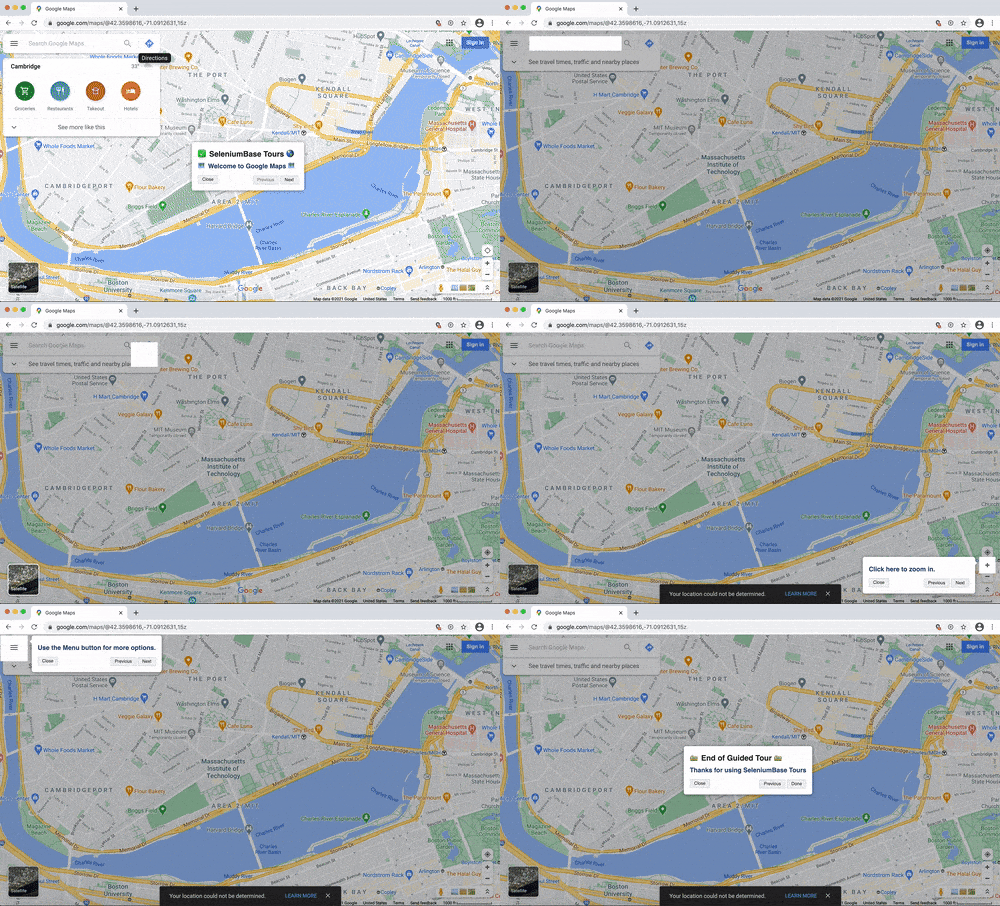
A tour demo: (with autoplay)
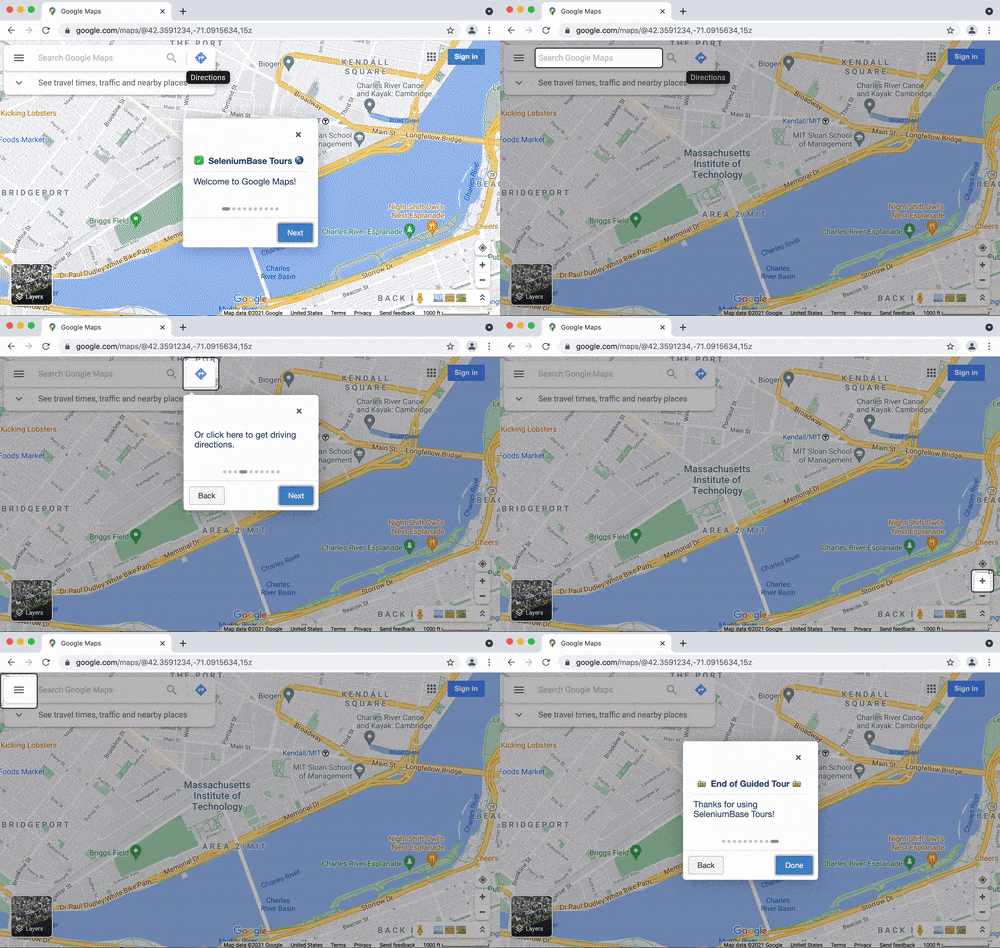
SeleniumBase maps_introjs_tour.py
cd examples/tour_examples
pytest maps_introjs_tour.py --interval=1
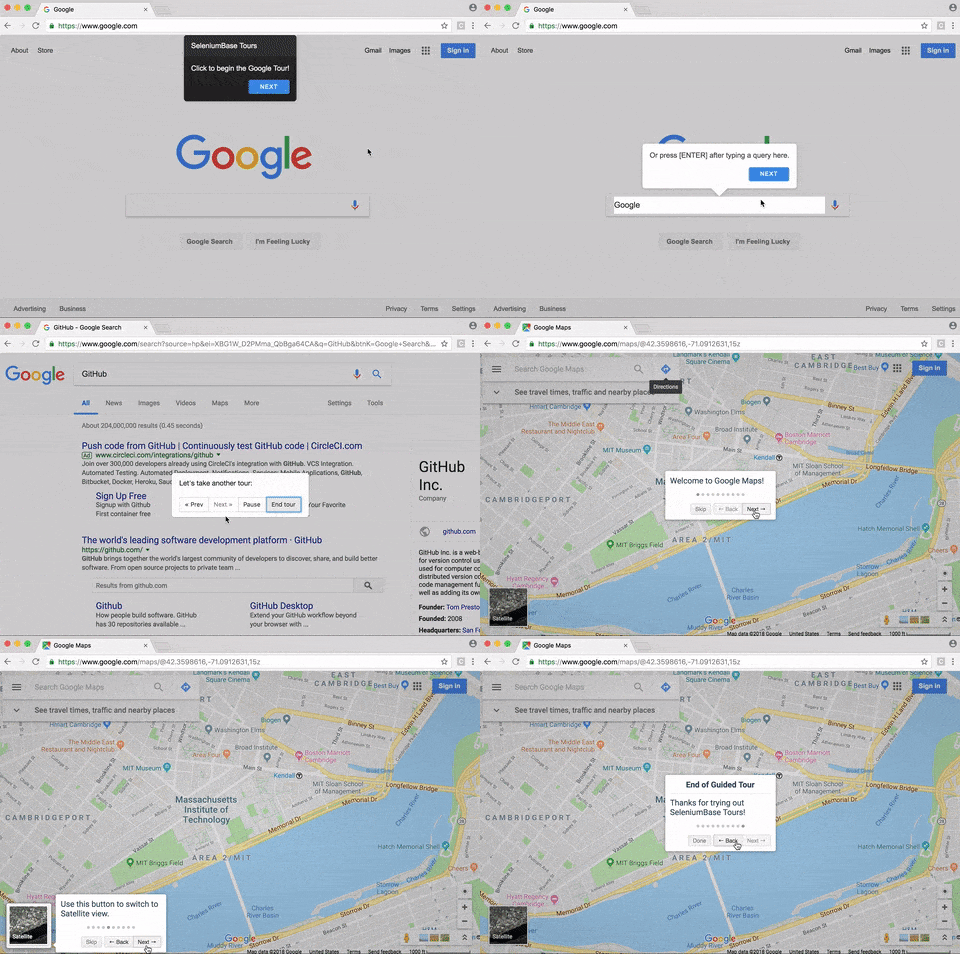
Here's a longer version:
cd examples/tour_examples
pytest google_tour.py
Creating a new tour
To create a tour utilizing the Shepherd Library, use one of the following
self.create_shepherd_tour()
OR
self.create_tour(theme="shepherd")
You can pass a custom theme to change the look & feel of Shepherd tours. Valid themes for Shepherd Tours are dark, light / arrows, default, square, and square-dark.
To create a tour utilizing the Bootstrap Tour Library, use one of the following
self.create_bootstrap_tour()
OR
self.create_tour(theme="bootstrap")
To create a tour utilizing the IntroJS Library, use one of the following
self.create_introjs_tour()
OR
self.create_tour(theme="introjs")
To create a tour utilizing the DriverJS Library, use one of the following
self.create_driverjs_tour()
OR
self.create_tour(theme="driverjs")
To create a tour utilizing the Hopscotch Library, use one of the following
self.create_hopscotch_tour()
OR
self.create_tour(theme="hopscotch")
Adding a step to a tour
To add a tour step, use the following
self.add_tour_step(message, css_selector, title, alignment, theme)
With the
self.add_tour_step()method, you must first pass a message to display. You can then specify a web element to attach to (by using CSS selectors). If no element is specified, the tour step will tether to the top of the screen by default. You can also add an optional title above the message to display with the tour step, as well as change the theme for that step (Shepherd tours only), and even specify the alignment (which is the side of the element that you want the tour message to tether to).
Playing a tour
You can play a tour by calling:
self.play_tour(interval)
If you specify an
interval(optional), the tour will automatically walk through each step after that many seconds have passed.
All methods have the optional name argument, which is only needed if you're creating multiple tours at once. Then, when you're adding a step or playing a tour, SeleniumBase knows which tour you're referring too. You can avoid using the name arg for multiple tours if you play a tour before creating a new one.
Here's how the code looks
from seleniumbase import BaseCase
BaseCase.main(__name__, __file__, "--uc")


class MyTourClass(BaseCase):
    def test_google_tour(self):
        if not self.undetectable:
            self.get_new_driver(undetectable=True)
        self.goto("https://google.com/ncr")
        self.click_if_visible('button:contains("Accept all")')
        self.wait_for_element('[name="q"]')
        self.hide_elements("iframe")

        # Create a website tour using the ShepherdJS library with "dark" theme
        # Same as:  self.create_shepherd_tour(theme="dark")
        self.create_tour(theme="dark")
        self.add_tour_step("Welcome to Google!", title="SeleniumBase Tours")
        self.add_tour_step("Type in your query here.", '[name="q"]')
        self.play_tour()

        self.highlight_type('[name="q"]', "Google")
        self.wait_for_element('[role="listbox"]')  # Wait for autocomplete

        # Create a website tour using the ShepherdJS library with "light" theme
        # Same as:  self.create_shepherd_tour(theme="light")
        self.create_tour(theme="light")
        self.add_tour_step("Then click to search.", '[value="Google Search"]')
        self.add_tour_step("Or press [ENTER] after entry.", '[name="q"]')
        self.play_tour()

        self.highlight_type('[name="q"]', "GitHub\n")
        self.ad_block()
        self.wait_for_element("#search")

        # Create a website tour using the Bootstrap Tour JS library
        # Same as:  self.create_bootstrap_tour()
        self.create_tour(theme="bootstrap")
        self.add_tour_step("3-second autoplay...")
        self.add_tour_step("Here's the next tour:")
        self.play_tour(interval=3)  # Tour automatically continues after 3 sec

        self.goto("https://www.google.com/maps/@42.3591234,-71.0915634,15z")
        self.wait_for_element('[name="q"]', timeout=20)
        self.wait_for_element('[aria-label="Interactive map"]', timeout=20)
        self.wait_for_element('[aria-label="Zoom in"]', timeout=20)
        self.wait_for_element('[aria-label="Zoom out"]')
        self.wait_for_element('[jsaction*="minimap.main;"]')
        self.sleep(0.5)

        # Create a website tour using the IntroJS library
        # Same as:  self.create_introjs_tour()
        self.create_tour(theme="introjs")
        self.add_tour_step("Welcome to Google Maps", title="SeleniumBase Tour")
        self.add_tour_step(
            "The location goes here.", '[name="q"]', title="Search Box"
        )
        self.add_tour_step(
            "Then click here to show it on the map.",
            '[aria-label="Search"]',
            alignment="bottom",
        )
        self.add_tour_step(
            "Or click here to get driving directions.",
            'button[aria-label="Directions"]',
            alignment="bottom",
        )
        self.add_tour_step(
            "Use this button to switch to Satellite view.",
            'button[jsaction*="minimap.main;"]',
            alignment="right",
        )
        self.add_tour_step(
            "Click here to zoom in.",
            '[aria-label="Zoom in"]',
            alignment="left",
        )
        self.add_tour_step(
            "Or click here to zoom out.",
            '[aria-label="Zoom out"]',
            alignment="left",
        )
        if self.is_element_visible('button[jsaction*="settings.open;"]'):
            self.add_tour_step(
                "Use the Menu button to see more options.",
                'button[jsaction*="settings.open;"]',
                alignment="right",
            )
        elif self.is_element_visible('button[jsaction="navigationrail.more"]'):
            self.add_tour_step(
                "Use the Menu button to see more options.",
                'button[jsaction="navigationrail.more"]',
                alignment="right",
            )
        self.add_tour_step(
            "Or click here to see more Google apps.",
            '[aria-label="Google apps"]',
            alignment="left",
        )
        self.add_tour_step(
            "Thanks for using SeleniumBase Tours!", title="End of Guided Tour"
        )
        self.export_tour()  # The default name for exports is "my_tour.js"
        self.play_tour()
That code is from google_tour.py, which you can run from the tour_examples/ folder with the following command
pytest google_tour.py
Exporting a Tour
If you want to save the tour you created as a JavaScript file, use:
self.export_tour()
OR
self.export_tour(name=None, filename="my_tour.js")
(
nameis optional unless you gave custom names to your tours when you created them.filenameis the name of the file to save the JavaScript to.) Once you've exported your tour, you can use it outside of SeleniumBase. You can even copy the tour's JavaScript code to the Console of your web browser to play the tour from there (you need to be on the correct web page for it to work).